

💡 TL;DR: Why can't I join the group? If you are stuck trying to join, it's usually one of three reasons:
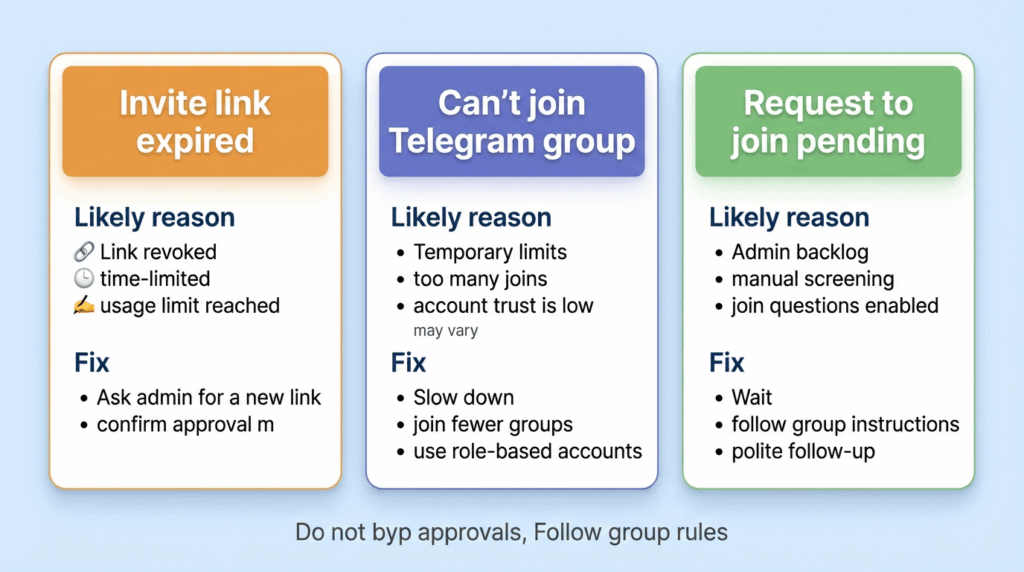
- "Link Expired": The admin revoked it or it hit the usage limit. You must ask for a new one.
- "Pending Approval": The group is private. You just have to wait for the admin to approve you.
- "Can't send messages": You joined a Channel (broadcast only), not a Group.
⚠️ CRITICAL WARNING FOR TEAMS: If you are joining multiple Telegram groups for marketing or lead generation, do not manually join dozens of groups in one day. Telegram's anti-spam filters will permanently ban your account. You need a safe bulk-joining workflow to distribute the load.
If you're searching for how to join a Telegram group, you're likely facing a broken link, a private community wall, or a messy tab-switching marathon trying to manage multiple accounts for work.
This guide gives you the exact solutions for both single-group troubleshooting and enterprise-level bulk joining.
👉 Choose your path below (Click to jump):
- 🛠️ I'm stuck: Fix my broken invite link or join error
- 📖 The Basics: Step-by-step guide to joining a single group (For beginners)
- 🚀 The Pro Method: How to safely bulk-join 50+ groups without getting banned (Free Tool)
- 💼 Team Ops: Manage multiple accounts and extract leads with a Telegram CRM
- 🤖 Next Step: Automate keyword monitoring & extract leads 24/7 with a Telegram Group Bot (For Business)
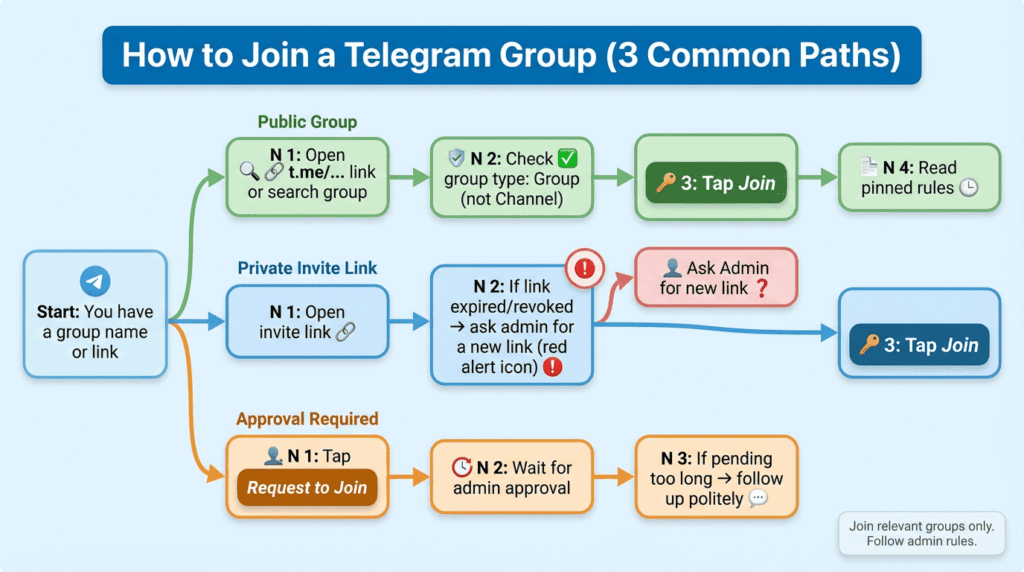
Direct Answer To join a Telegram group, you typically need either a public username link (t.me/...) or a private invite link from an admin. Open the link in Telegram, review the group info, then tap Join. If the group requires approval, your request will wait for an admin. If the invite link is expired or revoked, ask for a new one. For teams joining multiple groups, the safest approach is to keep a clear list of target groups, use dedicated accounts by market/role, and avoid aggressive joining behavior that can trigger restrictions. Tools like TGDesk for batch joining Telegram groups help organize accounts and group workflows—without bypassing Telegram rules.
Problem Breakdown: Why “How to Join Telegram Group” Fails in Real Life
Joining a group sounds simple until it isn’t. Here are the issues beginners hit most often.
1) “How to join Telegram group without link?” (You usually can’t)
Most groups are joinable only through:
- Public group link (searchable or shared)
- Private invite link (admin-created)
- Admin adds you (rare, but possible if they have your username/number)
If you don’t have any of the above, the practical fix is: find the official public link (website, social profiles, partner docs) or request an invite from an admin.
2) “How to join Telegram group with link, but it says expired”
Invite links can be:
- Expired (time-limited)
- Revoked (admin disabled it)
- Usage-limited (max joins reached)
Solution: ask for a fresh invite link and confirm whether the group is now approval-based.
3) “How to join Telegram group when it requires approval”
Some groups enable Join Requests. You can tap Request to Join, but:
- You might wait minutes to days
- Admins can reject without explanation
- You may need to answer a join question (if enabled)
This isn’t a bug—it’s a moderation choice.
4) “I joined, but I can’t see messages / can’t talk”
Common causes:
- You joined a channel instead of a group (channels are broadcast-only)
- The group is in restricted mode for new members
- You haven’t passed verification steps set by admins (rules message, bot check)
Telegram terminology matters here: groups are for discussion; channels are for broadcasting. Systematic Solution / Methodology: How to Join Telegram Group (Safely, Single or Bulk)
Here’s a clean, beginner-friendly workflow that works for individuals and for teams.
Telegram marketing & operations guide
Step-by-step framework (3–5 steps)
- Identify the group type (public vs private vs approval-based)
- Public: you can join immediately via link or search
- Private: you need a working invite link or admin add
- Approval-based: you request access and wait
- Validate the invite source (avoid fake groups)
- Check group name, description, and member count
- Confirm it’s linked from an official site/profile
- If it’s a business community, look for pinned rules and admin list
- Join on one account first, then standardize your team workflow
- For a team: define which account joins which groups (by market/brand/role)
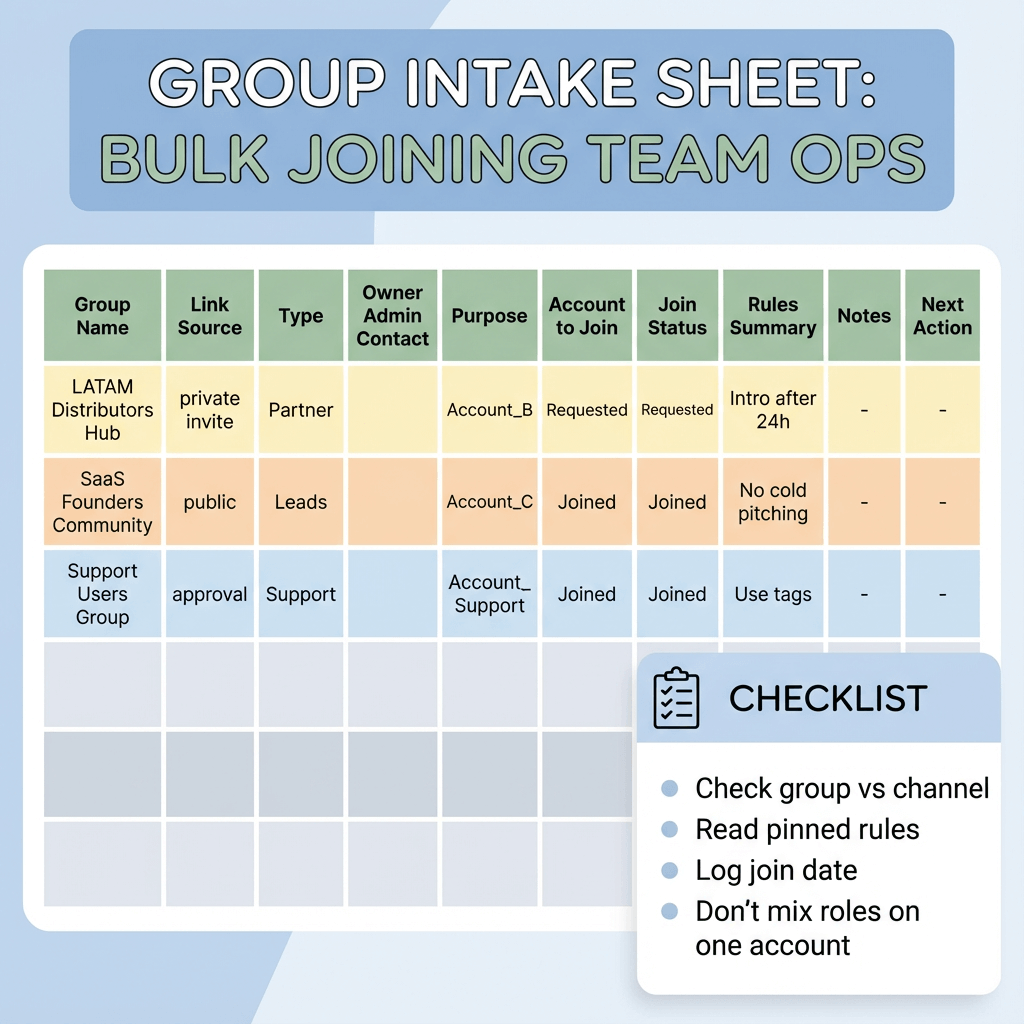
- Keep a simple “Group Intake Sheet”: link, owner, purpose, join status, notes
- For bulk needs: batch your joining actions with clear segmentation
If your team needs bulk joining (e.g., 30 distributor groups, 50 customer support groups), avoid random joining across mixed accounts. Segment like this:
- Account A: Market/Region 1 communities
- Account B: Partners/Distributors
- Account C: Customer support groups This reduces confusion and lowers operational risk.
- Operate and maintain: track membership, permissions, and follow-up actions
- Note which groups require approval
- Track which groups have posting rules
- Create a “first message checklist” (only if allowed by group rules)
If you’re managing multiple Telegram accounts and need a controlled way to bulk join groups while keeping roles separated, Telegram CRM Client - TGDesk helps centralize multi-account sessions and group operations so your team doesn’t rely on manual switching and scattered notes.
Common mistakes / reasons / fixes
- Mistake: Joining dozens of groups quickly “because it’s faster”
- Reason: High-frequency joins can trigger platform restrictions or temporary limitations (varies by account history and behavior).
- Fix: Batch gradually, keep accounts role-based, and prioritize groups that are clearly relevant.
- Mistake: Confusing a Telegram channel with a Telegram group
- Reason: Both can look similar via links, but channels are one-to-many broadcasts.
- Fix: Check the entity type before you join; for discussion, you need a group.
- Mistake: Using the same account for every market and every purpose
- Reason: Operations become messy; you lose context, and access issues become harder to debug.
- Fix: Use multi-account separation by brand/market/role; document which account joined what.
- Mistake: Treating “bulk join groups” as a growth hack
- Reason: Many communities have strict rules; joining without clear intent can get you removed or reported.
- Fix: Join only relevant groups, respect rules, and use a value-first approach.
Field notes (what usually goes wrong day-to-day)
In day-to-day ops, teams often start with “just join the group” and end up with: one shared account logged in everywhere, no record of which groups were joined, invite links that expire, and confusion about who is allowed to post. The operational pain isn’t only how to join Telegram group—it’s how to keep group access organized over time, especially when multiple people touch the same communities.
Security Principles for Telegram Multi‑Account and Proxy Configuration
When teams scale group operations, the risk shifts from “how to join Telegram group” to “how to avoid chaos and account issues.”
- Separate accounts by role (sales outreach vs support vs community)
- Use consistent device/session management to reduce login friction
- Be cautious with network/proxy changes: stability matters more than cleverness
- Prefer local data backup and clear ownership so ops doesn’t break when someone leaves
Important transparency: TGDesk can help manage multiple sessions, proxy configuration, and local backups for operational stability, but it cannot and should not bypass Telegram’s access controls, admin approvals, or platform restrictions.
Designing Telegram Broadcast Cadence and Content Layers for Export Scenarios
Even if your immediate query is how to join Telegram group, most teams join groups because they plan to communicate later.
A safe, effective content layering approach:
- Layer 1: Presence — profile bio, pinned intro, clear company identity
- Layer 2: Value — answer questions, share resources allowed by rules
- Layer 3: Permission-based outreach — only message users who opted in or where rules allow
- Layer 4: Broadcast to your own audience — use channels/lists you control
This is where teams usually connect group operations with broader lead generation—without treating groups as a spam pipeline.
Real‑World Scenarios / Case Studies
Scenario 1: Export SDR joining distributor groups
Role: Export SDR (beginner) Goal: Join 40 distributor Telegram groups shared by partners, then track which groups allow introductions.
- Step 1: SDR joins 2–3 groups manually to learn each group’s rules
- Step 2: The team creates a group intake sheet (owner, rules, approval status)
- Step 3: They split accounts: one for EMEA distributors, one for LATAM distributors
- Step 4: They use TGDesk to manage multi-account sessions and keep group membership organized for follow-ups
What usually goes wrong: invite links expire mid-week, SDR loses which account joined which group. Fix: store group metadata + keep role-based accounts.
Scenario 2: Founder building community partnerships
Role: Founder Goal: Figure out how to join Telegram group communities where ICP hangs out, without looking pushy.
- Joins only groups with clear relevance and active moderation
- Reads pinned rules, waits 24 hours, contributes before posting links
- Uses a separate community account to avoid mixing personal chats with business ops
- Later, uses TGDesk to keep business accounts and groups tidy as the team grows
Outcome (no fake numbers): fewer moderation issues, clearer ops handoff when a marketer joins later.
Tool Perspective & Selection Tips
If you only need how to join Telegram group once, Telegram itself is enough. If you’re joining many groups as a team, evaluate tools with these criteria:
- Telegram-first workflow: built specifically for Telegram operations, not generic social tools
- Multi-account / multi-session support: role separation without constant relogging
- Group management: see and manage multiple groups centrally
- Operational safety: proxy configuration options, local backup, privacy-aware design
- Transparency: clear limits; no “magic bypass” claims
TGDesk is strongest when you need bulk join groups + group management + multi-account ops in one place, and you want a calmer, more auditable workflow.
Many teams pair group intake with a dedicated Telegram lead generation workflow, especially when distributors share private invite links. If you plan to message at scale later, the Telegram sender feature page can help you understand broadcast basics and when not to use them. For onboarding teammates, a short download-and-setup guide reduces mistakes in multi-account operations.
Compliance & Safety Note
Telegram groups are communities with admins, rules, and platform controls. Bulk joining should be done only for legitimate, relevant purposes, and behavior that looks like automation abuse can lead to restrictions (details vary). TGDesk is designed to improve operational efficiency and account organization—not to evade policies, bypass approvals, or spam. Always follow group rules, respect consent, and prioritize permission-based communication.
You can view the official Telegram manual here.
FAQ
1) How to join Telegram group with a link?
Open the invite link in Telegram and tap Join. If the group needs approval, tap Request to Join and wait for an admin decision. If the link fails, ask the admin for a new one.
2) How to join Telegram group without an invite link?
You generally need either a public group link, a searchable public group name, or an admin adding you. If none are available, request the official link from the group owner or company.
3) Why can’t I join a Telegram group even with the correct link?
The invite may be expired, revoked, or limited by usage. The group may also require admin approval, or your account may face temporary limits based on behavior history.
4) Is it safe to bulk join groups on Telegram?
It can be safe if you do it gradually, join only relevant groups, and keep accounts separated by role. Aggressive joining patterns can trigger restrictions, so prioritize operational discipline over speed.
5) How to join Telegram group on desktop vs mobile?
The steps are similar: open the link, review group details, and click Join. Desktop can be easier for managing many links; mobile is convenient for quick verification steps.
6) What’s the difference between joining a Telegram channel and a Telegram group?
A group is for two-way discussion; a channel is primarily one-way broadcasting from admins to subscribers. If you need conversations, make sure you’re joining a group.
7) Can TGDesk automatically join Telegram groups for me?
TGDesk can help manage multi-account sessions and streamline group operations, but it should not be used to bypass Telegram’s controls or group admin approvals. Exact capabilities depend on your workflow and compliance requirements.
Conclusion
If your core question is how to join Telegram group, the reliable path is simple: get the right link, confirm the group type, and follow admin rules—especially for private or approval-based groups.
If you’re joining many groups for work, treat it like an ops process: segmentation, tracking, and stable account management beat “rush joining” every time.
Try TGDesk as your team’s control center for bulk join groups and multi-account Telegram operations, then route your workflow from organized group access to consistent lead generation. Download TGDesk to set up role-based accounts and start joining Telegram groups with less friction.
Telegram Group Link Join Guide: How to Access and Manage Business Communities Safely
A beginner's guide to the Telegram group link join process for business. Learn to generate tracking links, join groups safely without bans, and manage multi-account access
How to Add People on Telegram + Bulk Adding Workflow for Teams
How to add people on Telegram by username or phone number, handle privacy settings, fix "user not found," and organize bulk adding for work teams with TGDesk.