

If you’re searching how to add people on Telegram, you’re probably facing one of three realities: you can't find them by username, you have a list of phone numbers that won't sync, or you’re trying to add multiple leads for work and the manual process is eating up your day.
This guide solves how to add people on Telegram step by step (by username, phone number, and "People Nearby"), and then shows a compliant bulk workflow for teams that need to add many contacts without triggering account restrictions. We’ll also cover common failure points and what to do when Telegram says “User not found” or restricts your adding limits.
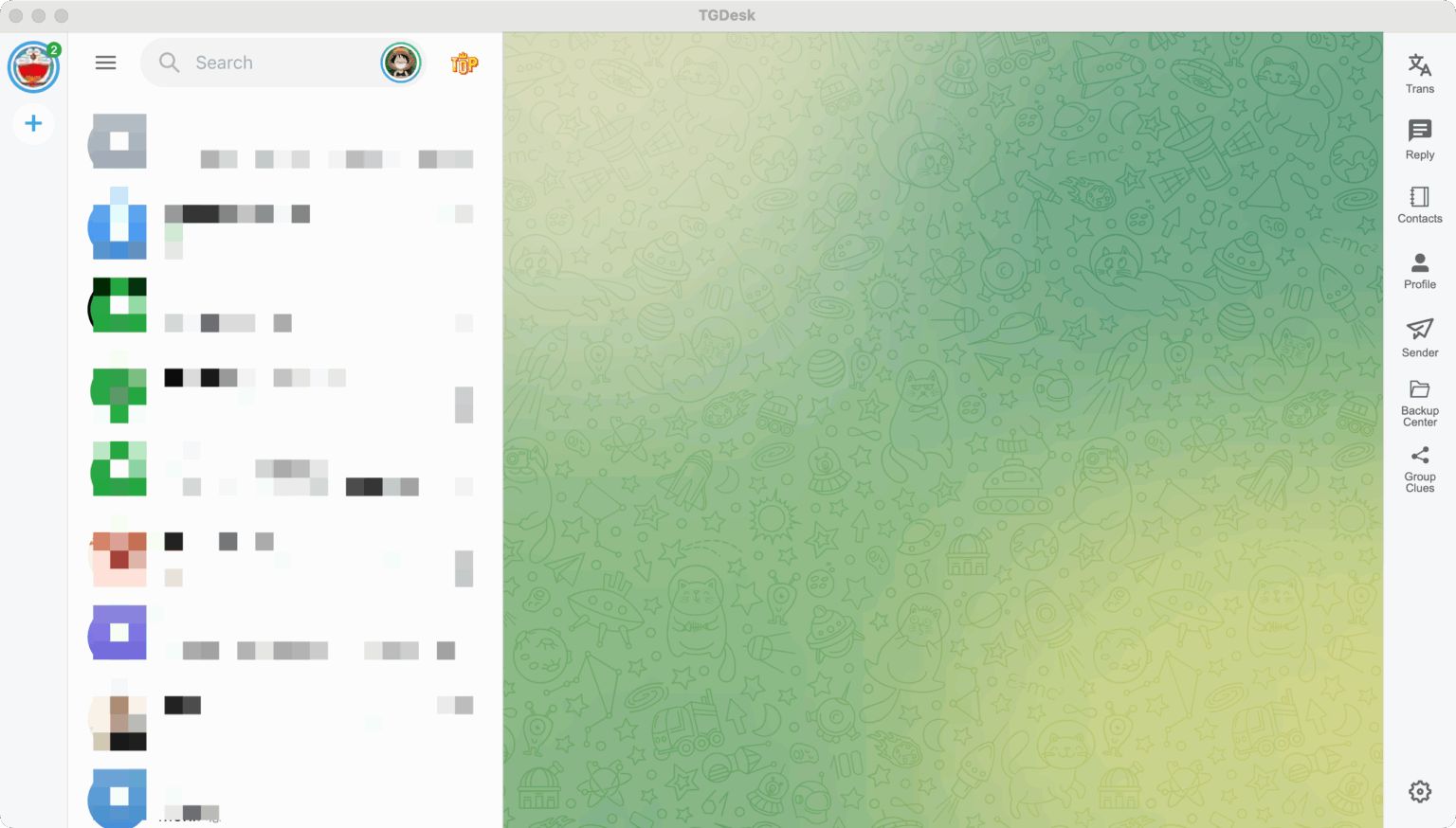
Direct Answer To add a person on Telegram, you typically need either their exact username (starting with @) or their phone number saved in your contacts. Open the "Contacts" menu, tap the + icon, and enter their details. If they have blocked you or hidden their number, you cannot add them. For teams managing customer lists, the safest approach is to use dedicated accounts, segment your lists, and avoid aggressive adding behavior. Tools like TGDesk for bulk adding on Telegram help automate contact management and streamline the workflow—without bypassing Telegram’s privacy rules.
Problem Breakdown: Why “How to Add People on Telegram” Fails in Real Life
Adding a contact sounds simple until it isn’t. Here are the issues beginners hit most often.
1) “How to add people on Telegram without username?”
If you don't have their username (@name), you generally need their phone number.
- Phone Number: You must save them to your device contacts first, then sync with Telegram.
- People Nearby: Only works if you are physically close and they also have this feature turned on (rare for business).
- Group Members: You can click on a profile in a group and select "Add to Contacts."
If you have none of these, you cannot add them. The practical fix is: ask for their t.me link or QR code.
2) “I searched the username, but it says User Not Found”
This usually happens because:
- Typo: Usernames are exact.
@Johnis not@John_Doe. - Privacy Settings: The user has disabled "Find by phone number" or changed their username.
- Account Deleted: The user no longer exists.
Solution: Double-check the spelling or ask for a direct t.me/username link.
3) “How to add people when they have privacy enabled”
Some users set Privacy and Security settings to strictly limit who can find them.
- "Who can find me by my number": If set to "My Contacts," you cannot add them by number unless they have you saved too.
- "Who can add me to groups": Even if you add them as a contact, you might not be able to add them to a group.
This isn’t a bug—it’s a privacy choice.
4) “I added them, but I can’t message them”
Common causes:
- Spam Block: You messaged too many strangers recently.
- Mutual Contact Requirement: They only accept messages from people in their contacts.
- Pending Request: In some cases, your message goes to a "Requests" folder.
Telegram terminology matters here: Contacts are personal connections; Members are people in a group.
Systematic Solution / Methodology: How to Add People on Telegram (Safely, Single or Bulk)
Here’s a clean, beginner-friendly workflow that works for individuals and for teams.
Telegram marketing & operations guide
Step-by-step framework (3–5 steps)
- Identify the data source (Username vs Phone Number)
- Username: Fastest method, respects privacy (no number sharing).
- Phone Number: Requires saving to device contacts first.
- ID/Direct Link: Best for sharing via email or other chats.
- Execute the Add Action (Manual)
- Mobile: Go to Contacts > Tap
+> Enter Name & Number. - Desktop: Click Burger Menu > Contacts > Add Contact.
- Via Link: Open
t.me/username> Click "Add to Contacts" in their profile.
- Mobile: Go to Contacts > Tap
- Verify the Connection
- Check if their "Last Seen" status is visible (unless hidden).
- Send a polite intro message to establish context.
- For bulk needs: batch your adding actions with clear segmentation
If your team needs bulk adding (e.g., adding 50 leads from a conference, 100 client support numbers), avoid manually typing them one by one. Segment like this:
- Account A: Sales Leads (Region 1)
- Account B: Support Tickets
- Account C: VIP Partners This reduces the risk of your account being flagged as a "spammer."
- Operate and maintain: clean up your contact list
- Regularly delete old contacts to keep the sync fast.
- Use "Edit Name" to add tags (e.g., "John - Lead") for easier searching.
If you’re managing multiple Telegram accounts and need a controlled way to bulk add contacts while keeping lists separated, Telegram Group Bot - TGDesk helps centralize multi-account sessions and contact operations so your team doesn’t rely on manual phone syncing.
Common mistakes / reasons / fixes
- Mistake: Adding 50+ people in 5 minutes on a new account
- Reason: High-frequency adding looks like bot behavior to Telegram.
- Fix: Warm up accounts, add slowly (5-10 per hour), and ensure people want to be added.
- Mistake: Importing a CSV of random numbers to "check who has Telegram"
- Reason: This is "number checking" and is often blocked by Telegram API limits.
- Fix: Only add numbers you have a legitimate business relationship with.
- Mistake: Using the same account for personal friends and cold leads
- Reason: If leads report you for spam, your personal account gets limited.
- Fix: Use multi-account separation; keep personal and work contacts distinct.
- Mistake: Assuming "Add to Contacts" means "Add to Group"
- Reason: Adding a contact is 1:1. Adding to a group is a different permission.
- Fix: First connect 1:1, then invite to group (or send the group link).
Field notes (what usually goes wrong day-to-day)
In day-to-day ops, teams often start with "just add these client numbers" and end up with: mixed-up contact books, duplicate entries, and "PeerFlood" errors (temporary bans). The operational pain isn’t only how to add people—it’s how to manage a growing database of Telegram users without getting your SIM card banned.
Security Principles for Telegram Multi‑Account and Contact Management
When teams scale contact operations, the risk shifts from “how to find a user” to “how to protect company data.”
- Separate accounts by function (Acquisition vs Retention)
- Don't sync personal phonebooks to work accounts
- Be cautious with bulk imports: quality over quantity
- Prefer username links over phone numbers for initial outreach (more privacy-friendly)
Important transparency: Telegram Group Bot - TGDesk can help manage multiple sessions and bulk contact imports for operational efficiency, but it cannot bypass user privacy settings or force-add people who have blocked you.
Designing Telegram Outreach Cadence and Contact Layers
Even if your immediate query is how to add people on Telegram, most teams add people because they plan to communicate.
A safe, effective outreach approach:
- Layer 1: Verification — Check if the number is active on Telegram.
- Layer 2: Connection — Add to contacts with a clear name tag.
- Layer 3: Introduction — Send a "Value First" message (not a sales pitch).
- Layer 4: Nurture — Move conversation to a Group or Channel if they agree.
This is where teams usually connect contact operations with broader lead generation—without treating users as data points.

Real‑World Scenarios / Case Studies
Scenario 1: Sales Rep following up on Event Leads
Role: Sales Rep Goal: Add 40 prospects from a trade show list to Telegram for faster follow-up.
- Step 1: Rep saves numbers to a dedicated work phone (or uses TGDesk to import).
- Step 2: Checks which numbers have Telegram accounts.
- Step 3: Adds them with a note: "Name - Event X".
- Step 4: Sends a personalized intro: "Hi Name, this is Rep from Event."
What usually goes wrong: The rep tries to add all 40 in 10 minutes and gets blocked. Fix: Spread the adding process over 2 days.
Scenario 2: Community Manager inviting VIPs
Role: Community Manager Goal: Figure out how to add people to a private VIP group.
- Adds the VIPs to contacts first.
- Sends a private message with the Group Invite Link.
- Does NOT force-add them to the group (which looks spammy).
- Uses TGDesk to track which VIPs have joined and who needs a reminder.
Outcome: High acceptance rate, zero spam reports.
Tool Perspective & Selection Tips
If you only need how to add people on Telegram for a few friends, your phone is enough. If you’re adding many contacts as a team, evaluate tools with these criteria:
- Bulk Import Capability: Can it handle CSV/Excel lists of numbers?
- Multi-account support: Can you split the list across 3-4 accounts?
- Contact Management: Can you tag, rename, and delete contacts easily?
- Safety Limits: Does the tool have built-in delays to prevent bans?
- Transparency: Clear pricing and no "hack" claims.
TGDesk is strongest when you need bulk add people + contact management + multi-account ops in one place, and you want a structured workflow.
Many teams pair contact adding with a dedicated Telegram lead generation workflow, especially when dealing with high volumes of inbound leads. If you plan to message at scale later, the Telegram sender feature page can help you understand broadcast basics. For onboarding teammates, a short guide on "How to Add People Safely" reduces mistakes.
Compliance & Safety Note
Telegram users value privacy. Bulk adding should be done only for legitimate, consented purposes (e.g., clients who gave you their number). Behavior that looks like harassment or data scraping can lead to permanent account bans. TGDesk is designed to improve operational efficiency—not to spam strangers or bypass privacy blocks. Always respect the user's choice to decline or block.
You can view the official Telegram manual here.
FAQ
1) How to add people on Telegram by username?
Go to Contacts (or the search bar), type the username (e.g., @username), tap their profile, and select Add to Contacts or just start messaging.
2) How to add people on Telegram by phone number?
You must save the phone number to your device's address book first. Then, open Telegram, go to Contacts, and the app will sync to show if that number has an account.
3) Why can’t I find a user even with their phone number?
They may not have a Telegram account, or their Privacy Settings ("Who can find me by my number") are set to "My Contacts" or "Nobody."
4) Is it safe to bulk add people on Telegram?
It is risky if done too fast. Telegram monitors how many contacts you add in a short time. To be safe, use tools like TGDesk to space out the actions and use multiple accounts.
5) How to add people on Telegram on desktop vs mobile?
On Mobile, you usually sync your phone book. On Desktop, you have to manually click Contacts > Add Contact and type the Name and Number.
6) Can I add someone who blocked me?
No. If a user has blocked you, you cannot add them, see their status, or message them.
7) Can TGDesk automatically add people for me?
TGDesk can streamline the process of importing contacts and managing lists across multiple accounts, saving you manual typing time. However, it respects Telegram's API limits and privacy rules.
Conclusion
If your core question is how to add people on Telegram, the reliable path is simple: use the search bar for usernames or your phone book for numbers.
If you’re adding many leads for work, treat it like a CRM process: segmentation, slow pacing, and clear identification beat "spam adding" every time.
Try TGDesk as your team’s control center for bulk adding people and multi-account Telegram operations, then route your workflow from organized contacts to consistent communication. Download TGDesk to set up role-based accounts and start managing Telegram contacts with less friction.
How to Join a Telegram Group + Bulk Joining Workflow for Teams
How to join Telegram group join by link, handle approval required, fix “invite expired,” and organize bulk joining for work teams with TGDesk.
Telegram Proxy Guide 2026: From Basic Setup on Mobile/PC to Advanced IP
Fix Telegram connection issues instantly with our 2026 proxy guide. Step-by-step MTProto setup for Android/iOS & PC to bypass blocks and reduce lag.